Installing the Visual Studio Plugin
Use Visual Studio IDE to install the Visual Studio plugin extension.
To install the Visual Studio plugin, do the following:
- In Visual Studio IDE, select Extensions | Manage Extensions .
- In the Extensions and Updates tree, search for the Code Insight for Visual Studio extension in the Online | Visual Studio Marketplace category (or the Visual Studio Gallery category, depending on the Visual Studio version). The following shows the menu flow for the extension in Visual Studio 2019.
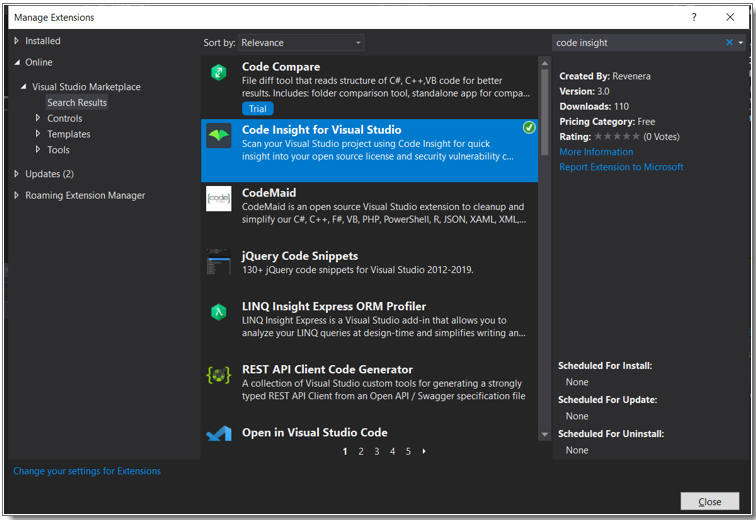
- When you locate the extension, click Download to download and automatically launch the plugin installer.
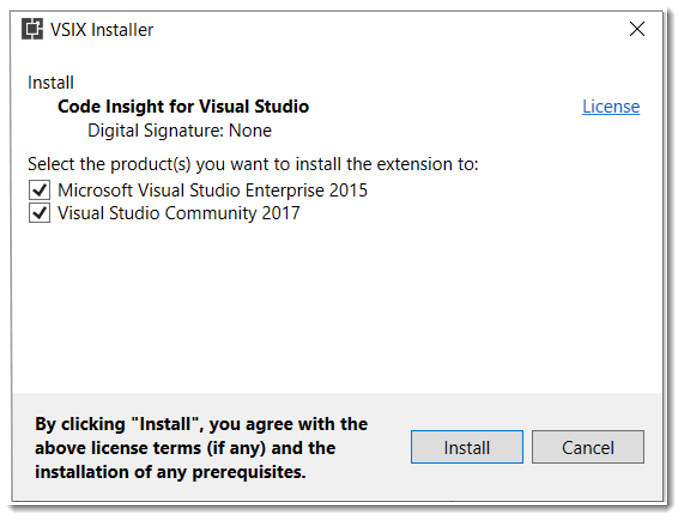
- You are prompted to select the Visual Studio version to which you are installing the plugin.
- Select the appropriate Visual Studio version, and click Install .
- When the installation completes, restart Visual Studio IDE to apply the extension.